Create namespace(project) elastic-system.
In OperatorHub, install Elasticsearch (ECK) Operator provided by Elastic.
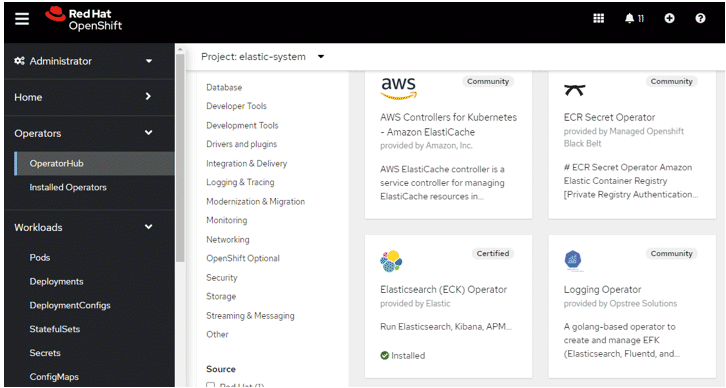
Click Install to start proceed.
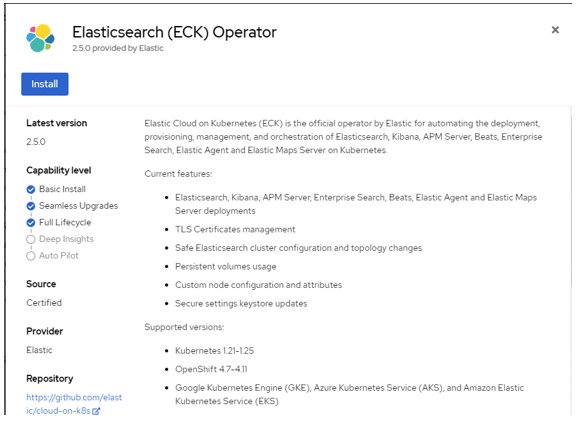
Change the Installation mode to "A specific namespace on the cluster" and select namespace "elastic-system". Click Install to complete the installation.
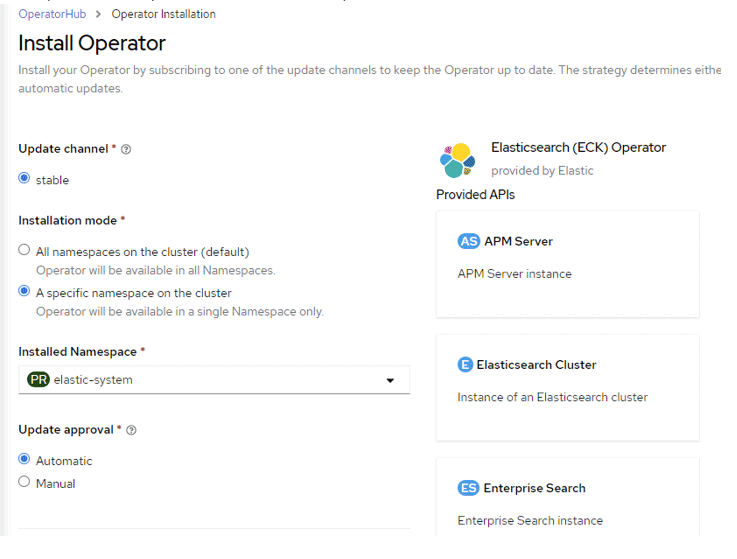
In Installed Operators, select "Elasticsearch (ECK) Operator".
Select "Elasticsearch Cluster" and "Create Elasticsearch".
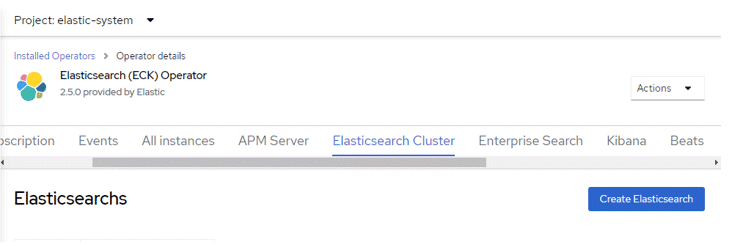
In YAML view, enter the following details and click "Create".
apiVersion: elasticsearch.k8s.elastic.co/v1
kind: Elasticsearch
metadata:
  name: quickstart
spec:
  version: 8.5.2
  nodeSets:
  - name: default
    count: 1
    config:
      node.store.allow_mmap: false
In Installed Operators, select "Elasticsearch (ECK) Operator".
Select "Enterprise Search" and "Create EnterpriseSearch".
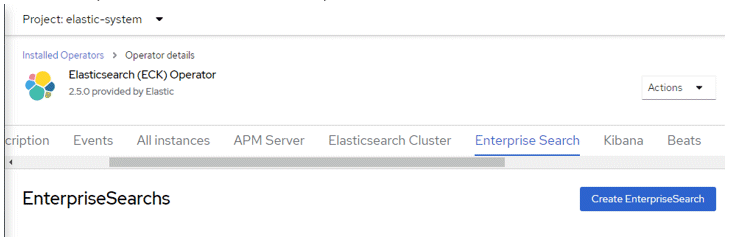
In YAML view, enter the following details and click "Create".
apiVersion: enterprisesearch.k8s.elastic.co/v1
kind: EnterpriseSearch
metadata:
  name: enterprise-search-quickstart
spec:
  version: 8.5.2
  count: 1
  elasticsearchRef:
    name: quickstart
In Installed Operators, select "Elasticsearch (ECK) Operator".
Select "Kibana" and "Create Kibana".
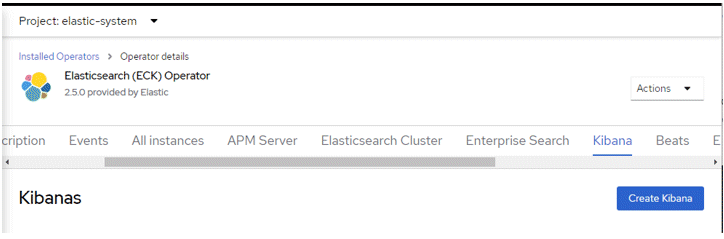
In YAML view, enter the following details and click "Create".
piVersion: kibana.k8s.elastic.co/v1
kind: Kibana
metadata:
  name: quickstart
spec:
  count: 1
  elasticsearchRef:
    name: quickstart
  enterpriseSearchRef:
    name: enterprise-search-quickstart
  version: 8.5.2
Obtain CA certificate that signs Kibana certificate.
Locate the secret quickstart-kb-http-certs-public.
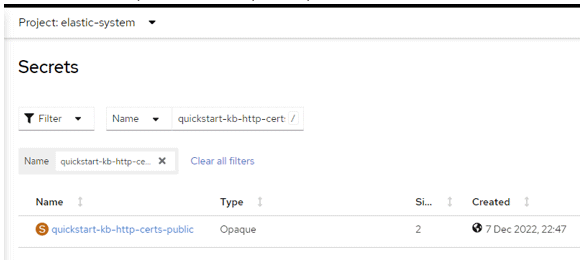
Copy the content of ca.crt.
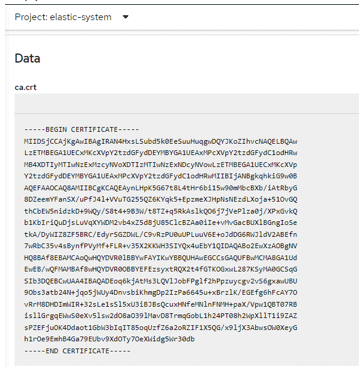
Create route for Internet access.
Navigate to Networking -> Route and select "Create Route".
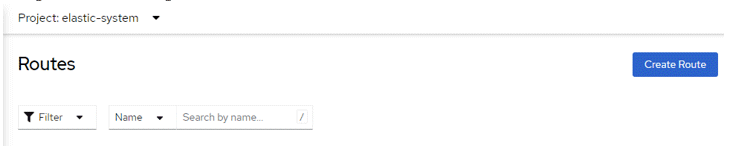
Fill in the details
Key | Value |
|---|---|
Name | kibana |
Hostname | Leave empty |
Path | / |
Service | quickstart-kb-http |
Target port | 5601 -> 5601 (TCP) |
Secure Route | selected |
TLS termination | Re-encrypt |
Insecure traffic | Redirect |
Destination CA certificate | Content of ca.crt in previous step |
Obtain the Elasticsearch/Kibana login details
Locate the secret quickstart-es-elastic-user
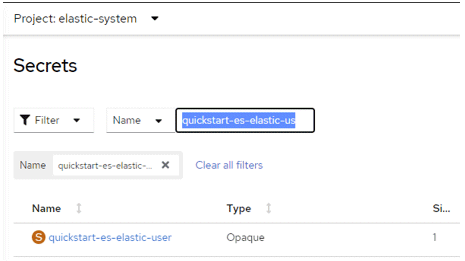
Observe the login details from the secret

Visit the URL as created in the Route above and use the above credential to login
Select the collapsed menu icon on top left corner and select Enterprise Search -> Content
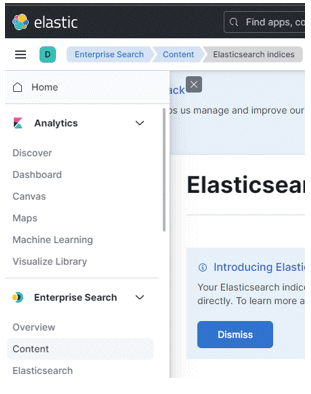
If fluentd is forwarding logs to this elastic cluster, you will find the indexes here.